Quick answer: If your HP Laptop Stuck on Startup Screen?, wait five minutes in case an update is running. Then unplug everything and do a hard reset. If it still freezes, press Esc at power-on, run the F2 hardware test, and use Windows Startup Repair. BIOS recovery or a Windows reset come last.
Key takeaways:
- HP says to wait at least five minutes before troubleshooting. A Windows or BIOS update can leave the screen blank for several minutes.
- A hard reset (AC adapter unplugged, power button held for about 15 to 20 seconds) doesn’t erase your files and is HP’s first fix.
- Pressing Esc at power-on opens HP’s Startup Menu, where F2 runs the hardware test, F10 opens BIOS setup, and F11 opens Windows recovery.
- HP confirmed in May 2026 that some early April BIOS updates could leave its business laptops stuck in a BitLocker recovery loop.
- Windows 10 reached end of support on Oct. 14, 2025. Microsoft’s Extended Security Updates (ESU) program for home users now runs until Oct. 12, 2027.
An HP laptop stuck on the startup screen can usually be fixed at home with a hard reset, HP’s F2 hardware test, or Windows Startup Repair. The cause is rarely a dead part.
Repairing it also beats replacing it in 2026. Worldwide PC shipments fell 20.1% in the third quarter as memory-driven price hikes and high prices weighed on demand, according to International Data Corp. (IDC).
This guide walks you through each fix in order, from a two-minute hard reset to a full Windows reinstall. It covers Windows 11 and 10, the BitLocker screen, and when to call a repair shop.
Why Is My HP Laptop Stuck on the Startup Screen?
An HP laptop freezes at startup when something fails between power-on and the Windows sign-in screen. A stuck update, a bad driver, a damaged boot file, or a corrupted BIOS can all stop it at the HP logo. The cause is usually one of these:
- An update in progress: Windows and BIOS updates can run before the logo screen clears. HP warns that interrupting one can damage the computer.
- A connected device: A USB drive, SD card, or dock can confuse the boot order.
- Damaged Windows boot files: A failed update or sudden shutdown can corrupt the files Windows needs to load.
- A bad driver or app: A new graphics driver or security app can stop Windows during loading.
- BIOS problems: The BIOS (Basic Input/Output System) is the first firmware that runs at power-on. If it’s corrupted, Windows can’t start.
- BitLocker or Secure Boot changes: Firmware updates can trigger a recovery key prompt.
- Failing hardware: A dying SSD (solid-state drive) or faulty memory can stall the boot.
- Heat: HP’s own troubleshooting page suggests cleaning the vents with compressed air if the laptop locks up at the logo. Thin and gaming models run hotter and collect dust faster. That includes many of the gaming laptops students often buy.
Where Exactly Is Your Laptop Getting Stuck?
The exact screen tells you which fix to try first. Note what you see before you start pressing keys.
What you see | Likely cause | Try first |
| Black screen, power light on, keys blink or it beeps | BIOS or hardware fault | CMOS (BIOS settings) reset or BIOS recovery |
| HP logo with no spinning dots | Firmware or a connected device | Hard reset with all devices removed |
| HP logo with spinning dots that never stop | Update, driver, or Windows boot files | Wait five minutes, then Startup Repair |
| “Preparing Automatic Repair” or “Diagnosing your PC” loop | Damaged Windows files | Startup Repair, then uninstall updates |
| Blue BitLocker recovery screen | Firmware, hardware, or security change | Enter your recovery key |
| Blue error screen with a stop code | Driver, update, or hardware | System Restore and hardware test |
HP laptop stuck on startup screen: which fix to try first for each type of freeze
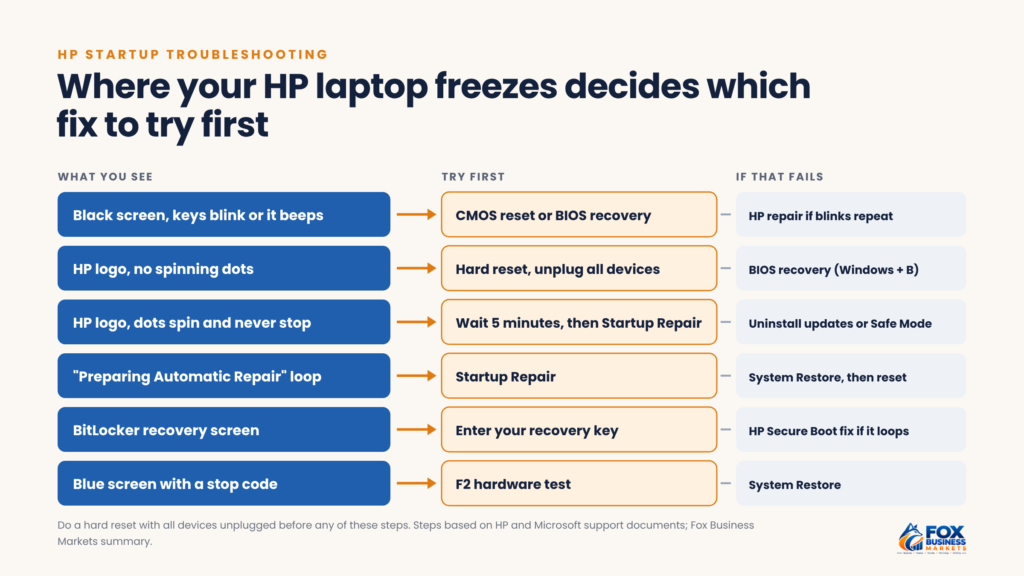
If the caps lock or num lock light blinks in a pattern, count the blinks. HP uses blink codes to point to the failed part, and HP support will ask for that number.
What Should You Try First?
When an HP laptop is stuck on the startup screen, start with the fixes that can’t make anything worse. These take about 10 minutes and often solve the problem.
- Wait five minutes. HP’s startup troubleshooting guide says the screen can stay blank for several minutes during a Windows or BIOS update. Don’t turn it off during that time.
- Unplug everything. Remove USB drives, SD cards, external drives, docks, and printers. Keep only the charger.
- Do a hard reset. Turn the laptop off and unplug the AC adapter. Press and hold the power button for about 15 to 20 seconds. Then reconnect the adapter and turn it on.
- Use the original charger. HP says to use the AC adapter that shipped with the laptop. A weak third-party charger can cause odd startup behavior.
- Clean the vents. Use short bursts of compressed air if the laptop runs hot or the fan is loud.
A hard reset clears temporary memory without touching your files. HP’s documents give both 15 and 20 seconds, so hold for 20.
On HP business laptops, such as EliteBook and ProBook models, HP’s guide adds one step. Hold the Windows key and the V key while you press the power button to turn the laptop back on.
If the laptop now starts, plug your devices back in one at a time. The one that causes the freeze again is your problem.
Which HP Startup Keys Can Help?
HP laptops have a set of keys that work before Windows loads. Turn the laptop off, turn it on, and tap Esc about once per second until the Startup Menu appears.
Key | What it opens | When to use it |
| Esc | Startup Menu | To see all the options below |
| F2 | HP PC Hardware Diagnostics (Unified Extensible Firmware Interface, or UEFI) | To test the drive, memory, and other parts |
| F9 | Boot device options | To start from a USB recovery drive |
| F10 | BIOS setup | To check boot order, Secure Boot, and BIOS version |
| F11 | Windows recovery | To reach Startup Repair, System Restore, or Reset |
| Windows + B | BIOS recovery (most consumer models) | When the BIOS is corrupted |
| Windows + V | CMOS reset (also part of HP’s hard reset on business models) | To clear BIOS settings that block startup |
HP laptop startup keys Esc, F2, F9, F10, F11, Windows + B, and Windows + V
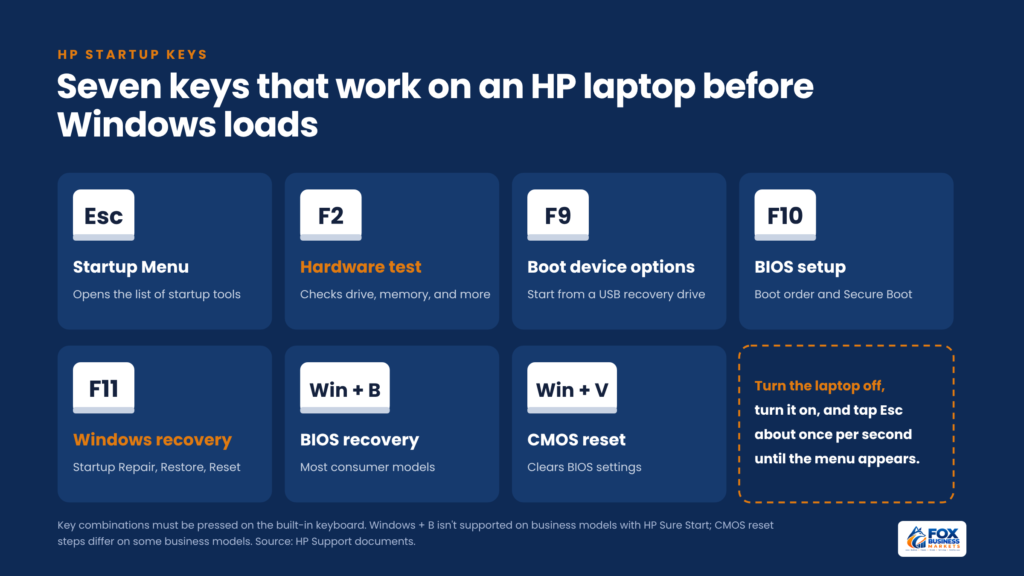
F10 and F11 also work on most models if you tap them right after power-on. Key combinations must be pressed on the laptop’s built-in keyboard, not a USB keyboard.
How Do You Check for Hardware Problems?
HP builds a hardware test into most laptops, and it runs even when Windows won’t. It shows if the problem is a broken part or software.
- Hold the power button for at least five seconds to turn the laptop off.
- Turn it on and tap Esc about once per second.
- Press F2 when the Startup Menu appears.
- Choose System Tests, then Fast Test, then Run once.
The Fast Test takes about four minutes. If nothing fails, HP suggests the Extensive Test, which can take two hours or more. When the F2 menu doesn’t appear, HP offers the same diagnostics as a USB download.
If a part fails, write down the 24-digit failure ID. HP support uses it to decide on a repair, and you can also find it later under Test Logs.
A failed storage test means the SSD or hard drive may be dying. Stop running repair tools at that point. Each extra boot attempt can make data recovery harder.
How Do You Fix an HP Laptop Stuck on Startup in Windows 11?
Most Windows 11 startup freezes are fixed inside the Windows Recovery Environment (WinRE). WinRE is a separate recovery system stored on the laptop.
According to Microsoft, WinRE opens on its own if Windows fails to start correctly multiple times. You can also open it in two other ways:
- Interrupt startup twice: Turn the laptop on and hold the power button to stop it before Windows loads. After two interrupted starts, Microsoft says the third should show the Automatic Repair screen.
- Use HP’s F11 key: On HP laptops, turn the laptop on and tap F11 about once per second.
Once you’re in WinRE, select Troubleshoot, then Advanced options. Try these tools in this order:
- Startup Repair: Restarts the laptop, then scans for missing system files, damaged boot configuration data, bad drivers, and registry errors. If it can’t fix the problem, it shows a report of what it found.
- Uninstall Updates: Removes the latest quality update or feature update. Use this if the freeze started right after Windows Update.
- Startup Settings: Restarts into a menu where you can press 4 for Safe Mode or 5 for Safe Mode with Networking. Safe Mode loads only basic drivers, so you can remove a bad driver or app.
- System Restore: Rolls Windows back to an earlier restore point. It changes system files and settings but not your personal files.
If your laptop is encrypted, Windows may ask for your BitLocker recovery key before these tools run.
Windows 11 also has a feature called Quick Machine Recovery. When a known problem stops many PCs from starting, it can download a fix from Microsoft while the PC sits in WinRE. You turn it on under Settings > System > Recovery, and it needs a wired or password-protected Wi-Fi connection to work.
Do the Fixes Work the Same Way on Windows 10?
Yes. On Windows 10, an HP laptop stuck on the startup screen gets the same fixes: the F11 key, WinRE, Startup Repair, Safe Mode, System Restore, and Uninstall Updates. Quick Machine Recovery is the exception, since Microsoft lists it as a Windows 11 feature.
The bigger difference is support. Windows 10 reached end of support on Oct. 14, 2025. Microsoft’s Extended Security Updates (ESU) program for home users now runs until Oct. 12, 2027, after Microsoft extended it by one year in June 2026.
If your HP laptop runs Windows 10 and isn’t enrolled in ESU, it gets no security fixes. A startup failure is a good moment to check whether the laptop can run Windows 11 once it’s working again.
Why Is My HP Laptop Asking for a BitLocker Recovery Key?
BitLocker is Windows’ drive encryption. It asks for a 48-digit recovery key when it detects a possible security change. A firmware update or new hardware can trigger it.
This became more common in 2026. Microsoft’s original Secure Boot certificates expired between June and October, so PC makers pushed firmware updates to add new 2023 certificates.
HP published a support notice dated May 11, 2026 about BIOS updates released in early April 2026. On affected HP business notebooks, desktops, and workstations running Windows 11, the BitLocker screen can return after every restart. This happens even when the correct key is entered.
HP’s fix for that loop is in BIOS setup:
- Tap F10 at power-on to open BIOS setup.
- Open the Security tab and select Secure Boot Configuration.
- Turn on all four certificate settings HP lists in the notice.
- Select Save Changes and Exit and restart.
After the new certificates apply, HP suggests turning three of them back off: Microsoft Option ROM UEFI CA 2023, Microsoft UEFI CA 2023, and Enable MS UEFI CA Key. Leave them on only if you use third-party boot tools. On company laptops, leave these changes to your IT team.
To find your key, go to Microsoft’s recovery key page from another device and sign in to the Microsoft account used on the laptop. A work laptop’s key is usually held by your IT department.
Microsoft says its support staff can’t retrieve or recreate a lost key. Without it, you may have to reset the laptop, which removes your files.
How Do You Recover a Corrupted HP BIOS?
A corrupted BIOS often shows up as a black screen, a blinking caps lock light, two beeps, or a “BIOS APPLICATION ERROR 501” message. HP laptops first try to repair the BIOS automatically when they restart.
If that fails, HP’s BIOS recovery guide lists two manual steps.
Reset the CMOS on a consumer laptop. The CMOS (complementary metal-oxide-semiconductor) chip stores BIOS settings. With the charger connected and the laptop off, hold Windows + V and press the power button for 2 to 3 seconds.
Then release only the power button. Keep holding Windows + V until the CMOS Reset screen appears or you hear beeps.
Recover the BIOS with a key combination. With the charger connected and the laptop off, hold Windows + B and press the power button. Release the power button after 2 to 3 seconds but keep holding Windows + B.
The HP BIOS Update screen should appear, and recovery starts on its own. A power light that turns off means you held the power button too long, so try again.
Many HP business laptops use HP Sure Start instead. These models repair the BIOS from a protected backup and don’t support the Windows + B method. The HP logo screen shows whether Sure Start is enabled.
When both methods fail, HP lets you build a BIOS recovery USB drive on another computer. Once the laptop starts again, update to the latest BIOS from HP’s support site.
What If None of the Fixes Work?
When repairs fail and the hardware test passes, resetting Windows is the next step. You have two options.
Reset this PC. In WinRE, select Troubleshoot, then Reset this PC. You can keep your personal files or remove everything.
Apps you installed are removed either way.
HP Cloud Recovery Tool. This reinstalls the original HP software image from a USB drive. HP’s Cloud Recovery guide lists these requirements:
- A working 64-bit Windows computer with internet access (it can be a different PC)
- A blank USB flash drive of at least 64 GB
- One to four hours for the download and recovery
- AC power connected the whole time
The tool erases the USB drive and, during recovery, the laptop’s drive. Back up anything you can first.
What Did We Learn From 57 HP Owners’ Forum Threads?
Real repair threads show that an HP laptop stuck on the startup screen rarely has one fix that works for everyone. In November 2026, we read 57 forum threads about HP laptops stuck between power-on and Windows. Most were on the HP Support Community and Microsoft Q&A.
Only 16 of the 57 threads (28%) ended with a fix marked as the solution. Only 5 owners said exactly which step worked.
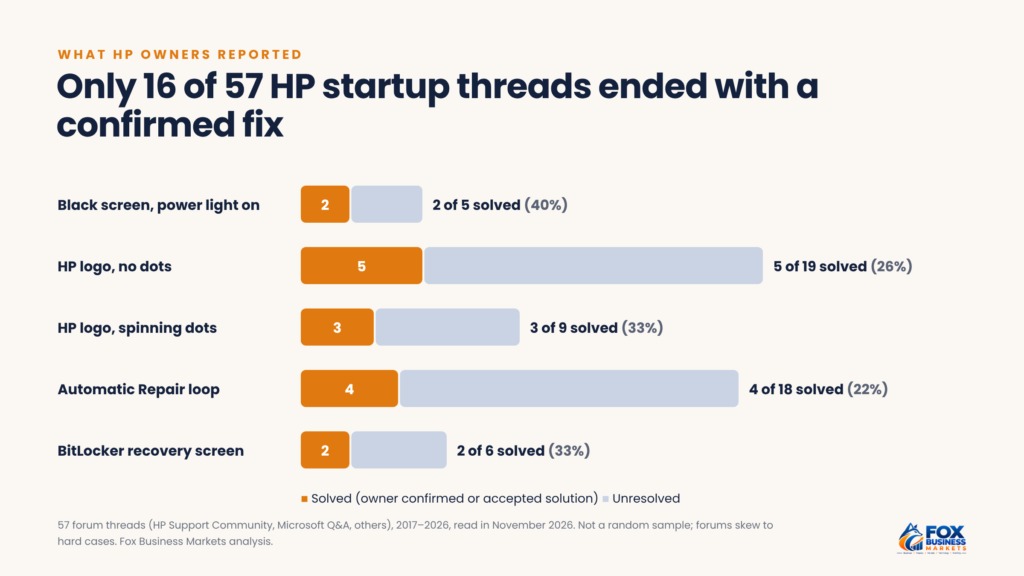
Where it got stuck | Threads | Solved |
| Black screen, power light on | 5 | 2 |
| HP logo, no dots | 19 | 5 |
| HP logo, spinning dots | 9 | 3 |
| Automatic Repair loop | 18 | 4 |
| BitLocker recovery screen | 6 | 2 |
Share of HP startup forum threads solved by type of freeze
Three patterns stood out:
- Automatic Repair loops were the hardest. Only 4 of 18 were solved. Two needed Startup Repair or a clean Windows install from a USB drive made on another computer.
- Logo freezes often traced back to firmware. Two of the 5 solved logo threads were fixed in the firmware. One used a BIOS reflash from USB, the other a change to BIOS boot settings.
- BitLocker screens followed firmware changes. Four of the 6 BitLocker threads started after a BIOS update or a Secure Boot change. In 3 of them, entering the correct key didn’t stop the screen from coming back.
Blink codes were a reliable warning sign. Two of the 5 black-screen threads showed caps lock blink patterns, and HP staff read both as hardware or system board faults.
How we did this: We opened 63 threads from 2017 to 2026, with 28 from 2025 or 2026, and dropped 6 that were off-topic. A thread counted as solved only if the owner confirmed the fix or it carried an accepted solution.
Limits: The HP forum blocked many page loads, so this isn’t a random sample. People with quick fixes rarely post, so treat the numbers as a picture of hard cases, not failure rates.
Does Getting Stuck on the HP Logo Mean the Hard Drive Is Dead?
No, a frozen HP logo doesn’t by itself mean the drive has failed. The logo stays on screen while firmware and early Windows files load. Updates, drivers, BitLocker prompts, and even a USB drive left in a port can stop the laptop there.
The F2 hardware test is the reliable way to know. If the storage test passes, the drive is very likely fine, and the problem is in Windows or the firmware.
Buying a new SSD before running that test can waste money. A new drive also starts empty, so you’d still need to reinstall Windows and copy your files from the old one.
When Should You Take It to HP or a Repair Shop?
Get professional help when the problem is clearly hardware or the fixes keep failing. These are the main signs:
- The F2 test reports a failure ID.
- The laptop shows no signs of power at all: no lights, no fan, no screen.
- Caps lock or num lock blinks in a repeating pattern.
- The laptop gets very hot, smells burnt, or was dropped or got wet.
- The BitLocker screen asks for a key you can’t find.
- Startup Repair, System Restore, and Reset all fail.
Before you call HP, write down the product number and serial number from the label on the bottom. Have any failure ID or blink count ready too.
If you need your files, say so before any repair begins. Some repairs replace the drive or reinstall Windows, which can erase data.
A repair quote close to the price of a new laptop is a sign to compare options. A certified refurbished model may cost less, so see our tips on choosing a reliable refurbished laptop. For a family or student machine, our guide on choosing a PC or Mac for school compares the options.
Frequently Asked Questions
Can a virus stop an HP laptop from starting?
It can. HP lists virus damage as one possible cause of a corrupted BIOS, and malware can also damage the files Windows needs to load. Updates, drivers, and hardware faults are still the causes to rule out first. Tip: Once the laptop starts, run a Microsoft Defender Offline scan from Windows Security.
Can you get your files off an HP laptop that won’t start?
Often, yes. A repair shop can remove the SSD and copy files using another computer, or you can start the laptop from a bootable USB drive. If BitLocker is on, you’ll need the recovery key to read the drive. Tip: Ask the shop to copy or image the drive before any repair begins.
Does HP’s warranty cover a laptop that won’t start?
It covers hardware defects during the warranty period, such as a failed SSD or motherboard. HP’s limited warranty covers hardware and required firmware, not software apps, and excludes damage from accidents, misuse, or liquid spills. Tip: Check your warranty status on HP’s website with your serial number before paying for a third-party repair.
Why won’t a brand-new HP laptop start the first time?
Its battery may still be in shipping mode, a low-power state used while the laptop is in the box. HP says a blinking white AC adapter light on a new notebook is the usual sign. Tip: Connect the original charger, leave it for at least 30 minutes, and then press the power button.
Back Up Your Files Before the Next Freeze
Most frozen HP laptops start again after a hard reset or Windows recovery. The cases that end badly have no backup and no recovery key, and both take minutes to set up while the laptop still works.
Once your laptop runs again, turn on a backup, save your BitLocker key outside the laptop, and create a recovery USB drive. Our guides to organizing data on your computer and cleaning up a computer to make it run faster can help with the next step.
Safety note: This guide is for general information. BIOS changes, resets, and repairs can erase data or affect your warranty. If your files are important or the laptop is under warranty, consider contacting HP or a qualified repair technician first.


